






Measuring your house area accurately is essential for various purposes such as renovation, property valuation, or real estate documentation. One of the easiest and most accessible tools for this task is Google Earth. This free application allows you to measure the area of any land or property remotely with precision. In this guide, you will learn how to measure your house area using Google Earth, even if you are a beginner.
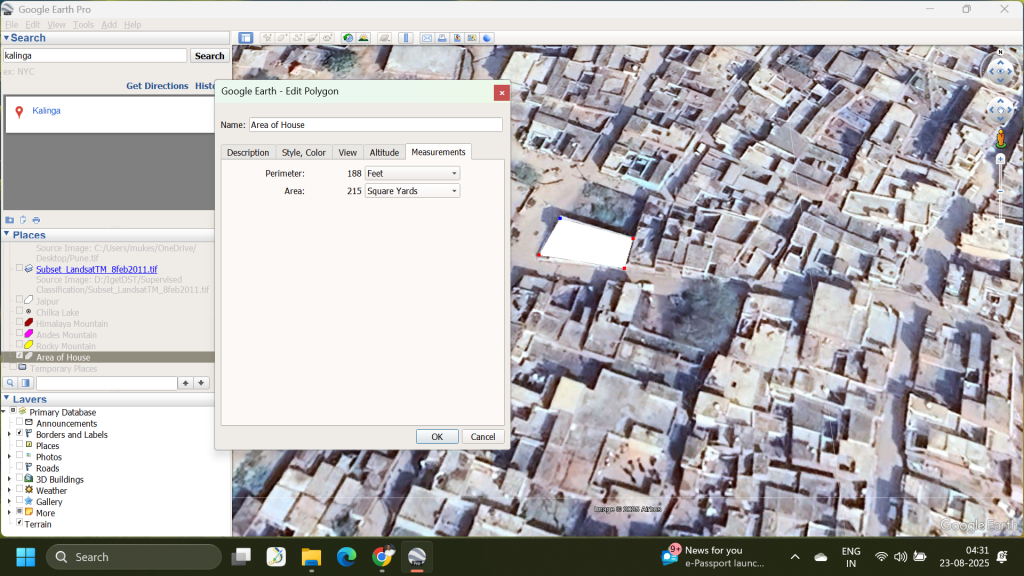
What You Need
- A computer with internet access
- Google Earth installed (Google Earth Pro for desktop is recommended, but the web version works too)
- Basic understanding of navigating the map interface
Step-by-Step Instructions to Measure Your House Area on Google Earth
Step 1: Open Google Earth
You can use either the desktop version, Google Earth Pro, or the web version available at the official site. For more accurate measurements and advanced tools, Google Earth Pro (free to download) is recommended.
Step 2: Locate Your House
Type your address or location in the search bar. Zoom into the satellite view until you clearly see the outline of your house or property.
Step 3: Select the Measurement Tool
- In Google Earth Pro, find the ruler icon or go to the menu and select the measuring tool.
- In the web version, look for the ‘Measure distance and area’ tool, usually represented by a ruler icon.
Step 4: Choose the Polygon Mode
Since you want to measure an area, select the ‘Polygon’ measurement option. This allows you to mark multiple points forming the boundary around your house.
Step 5: Mark the Perimeter of Your House
Click along the edges of your house on the satellite image to mark points forming a closed polygon around the perimeter. Try to be as precise as possible for an accurate measurement.
Step 6: Close the Polygon
Make sure your last point connects back to the first point to complete the polygon. Google Earth will automatically calculate the enclosed area.
Step 7: Read the Area Measurement
Once the polygon is complete, Google Earth shows the area in square meters by default but allows you to change it to other units like square feet, acres, or hectares using the dropdown menu.
Step 8: Save or Export Your Measurement (Optional)
In Google Earth Pro, you can save your measurement data for future reference or export it if needed.
Tips for Accurate Measurements
- Zoom in closely to your property boundaries.
- Use multiple points to outline complex shapes accurately.
- Adjust points if needed by dragging them to the correct position.
- Double-check measurements with physical property documents for precision.
Why Use Google Earth for Measuring House Area?
Google Earth is free, user-friendly, and provides high-resolution satellite imagery. It’s suitable for homeowners, real estate agents, students, and professionals who need quick area measurements without visiting sites physically.
Measuring your house area with Google Earth is simple and accessible. Follow these steps, and you’ll have an accurate area measurement in no time.
If you found this guide helpful, share it with your friends or bookmark it for your next property project!
FAQs
Q1: Can I measure my house area accurately using Google Earth?
A1: Yes, Google Earth provides precise tools to measure the area of your house or property remotely using satellite imagery, especially with Google Earth Pro.
Q2: Do I need to download Google Earth Pro, or can I use the web version?
A2: You can use both; however, Google Earth Pro (desktop version) offers more advanced and accurate measurement tools.
Q3: Can Google Earth measure irregular-shaped houses or land?
A3: Yes, by using the polygon mode, you can click multiple points around the perimeter to measure irregular shapes accurately.
Q4: Is the measurement in Google Earth completely accurate?
A4: While it’s quite accurate for general purposes, it may not account for elevation changes and small details, so always cross-verify with physical property documents if needed.
Q5: Can I save or export my measurements from Google Earth?
A5: Yes, Google Earth Pro allows you to save your measurements for future reference or export them as files.